Smartphones have become our go-to devices for capturing and storing precious moments in the form of photos. However, losing those memories due to accidental deletion or phone malfunction can be distressing. If you’ve accidentally deleted photos from your smartphone or cleared its memory, there are methods to help you recover those lost pictures.
1. Check Your Cloud Backup
One of the easiest ways to recover deleted photos is to check your cloud storage service. If you’ve been using a cloud app like Google Photos, Dropbox, or OneDrive, chances are your photos have been backed up automatically.
Steps to Recover Photos from Cloud Backup:
- Sign in to the cloud service where your photos were backed up (e.g., Google Photos).
- Browse your library or use the search function to find the deleted photos.
- If the photo is available in your cloud backup, download or restore it back to your device.
2. Check the SD Card
If you haven’t been using a cloud backup service, your photos may still be recoverable if they were stored on an SD card (if your phone supports one). When you delete a file, it doesn’t immediately get removed from the storage; instead, it is marked as “available for overwriting.”
Steps to Recover Photos from an SD Card:
- Remove the SD card from your smartphone and insert it into your computer or use an SD card reader.
- Download and install a photo recovery software on your computer to scan the SD card for deleted photos.
Some popular software for recovering deleted photos from an SD card include:
- Disk Drill
- EaseUS Data Recovery Wizard
Both of these programs offer a simple user interface and can scan your SD card for deleted files, including photos.
How to Use Disk Drill:
- Download and install Disk Drill on your computer.
- Connect the SD card to your computer (via an SD card reader).
- Launch Disk Drill and select your SD card from the list of available drives.
- Click on Scan to allow the software to search for deleted files.
- After the scan, preview the deleted photos and select the ones you want to recover.
- Click Restore to recover the selected images.
How to Use EaseUS Data Recovery Wizard:
- Download and install EaseUS Data Recovery Wizard on your computer.
- Insert the SD card into your computer and open the software.
- Choose the SD card drive and click Scan.
- After the scan completes, preview the recoverable files and select the photos you want to recover.
- Click Recover and save the photos to your computer or another device.
3. Use Professional Data Recovery Services
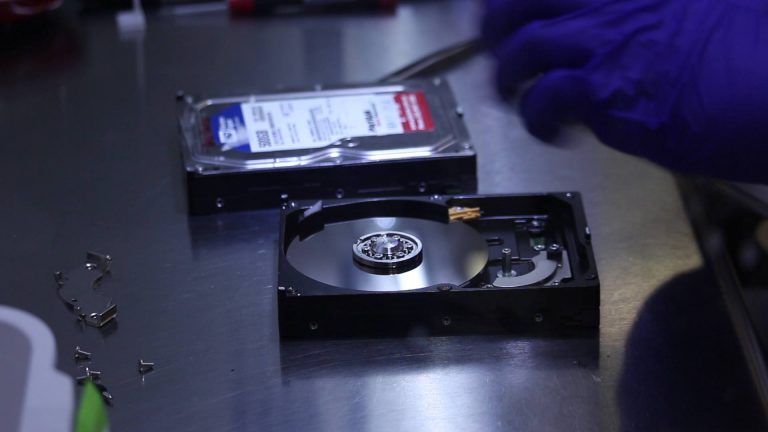
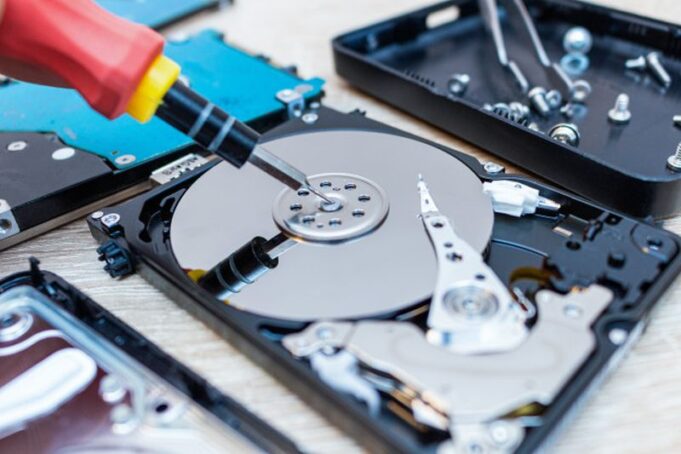
If your photos are not backed up in the cloud and you cannot recover them using software, consider reaching out to professional data recovery services. These services specialize in recovering lost data from damaged or corrupted storage devices, including smartphones and SD cards. However, this option can be more costly and time-consuming.
Important Tips for Future Photo Protection:
- Enable Cloud Backup: Regularly back up your photos to a cloud service to ensure they’re safe.
- Use External Storage: Regularly transfer important photos to external storage like an SD card or external hard drive.
- Avoid Overwriting: If you accidentally delete photos, avoid taking new photos or adding files to your device until recovery is attempted. New data could overwrite your deleted files.
In conclusion, whether you’ve lost photos due to accidental deletion, device malfunction, or a system error, there are multiple ways to recover them. The most effective methods include checking cloud backups, scanning SD cards with recovery software, or consulting professional data recovery services if necessary.
About the Author